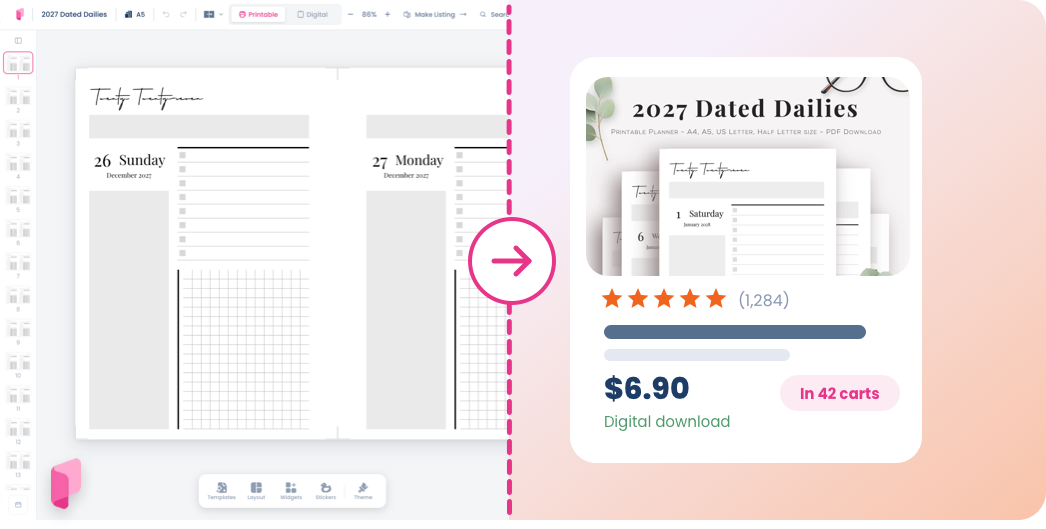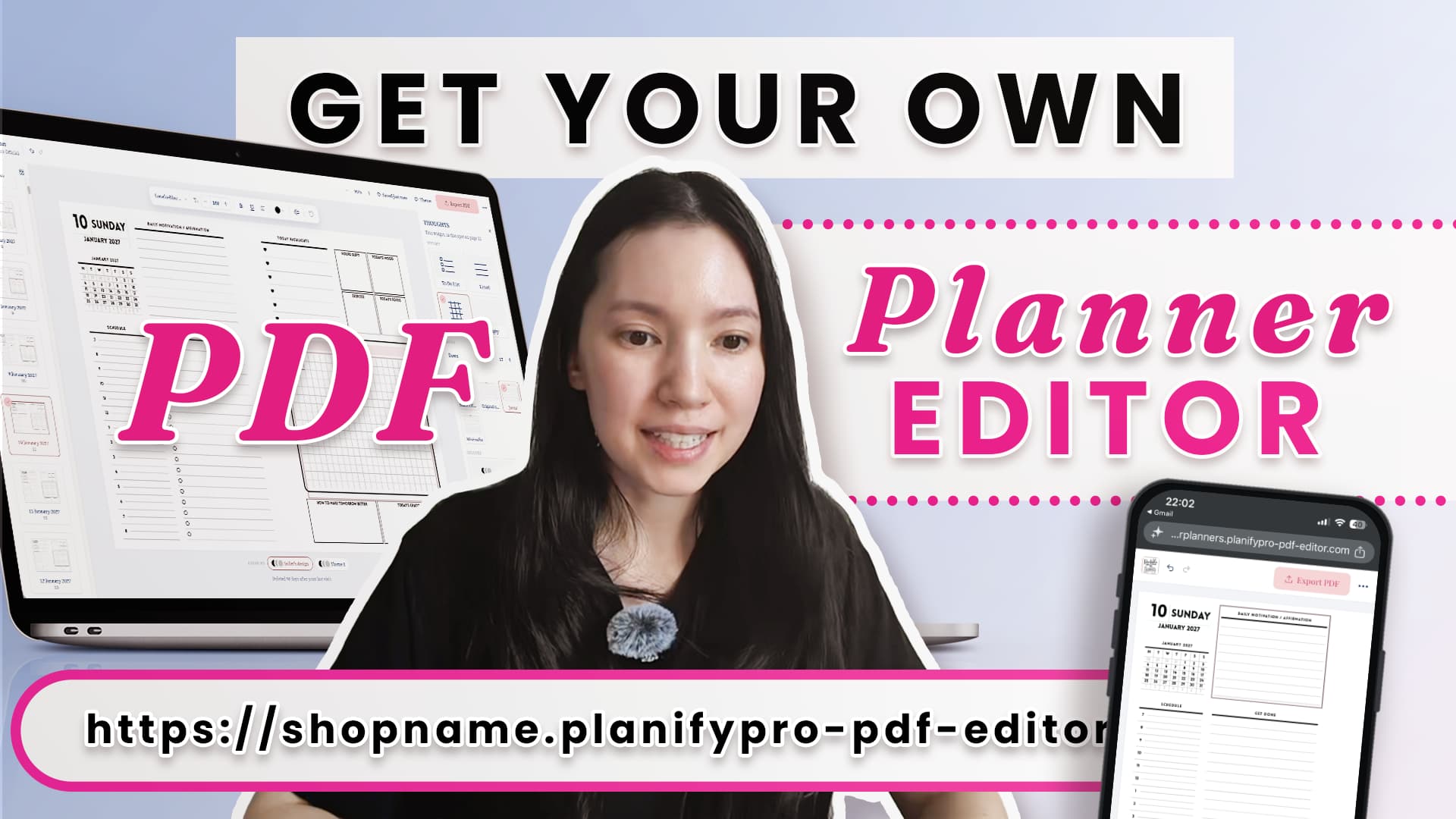
You can now have your own PDF planner editor for your customers. This means the people who buy your planners can open them in your editor and make simple edits to customise them to their liking: change the text, change the colours, change widgets (for example from lined to grid or a to-do list) and adjust the styling. When they're done, they download their finished PDF.
This PDF editor is included in your Business plan (Business, Business Plus and Business Max) at no extra cost. It's called Seller Studio, and you'll find it at sellerstudio.planifypro.com.
Why it helps: if you sell planners on Etsy, you know these messages: "Can you put my name on the cover?" "Can I get this in blue?" "Can I have grid instead of lines?" Until now, every request like that meant opening your file, making the change, exporting and sending it back, one buyer at a time. With your own PDF editor, buyers make those changes themselves, within the limits you set. You just make the sale.
How Seller Studio works
Here is the whole flow in five steps:
Design your planner in Planify Pro, like you always do.
Add it to Seller Studio as an editable template.
Choose what your buyers can change: fonts, colours, widgets, calendar days and more.
Connect it to your Etsy listing.
When someone buys on Etsy, they automatically get an email with a link to their own copy. They personalise it and download their PDF.
You set it up once. Every sale after that runs on its own.
Step 1: Start with a planner you've made
Everything starts with a planner you've already designed in Planify Pro. It can be a printable or a digital planner, dated or undated, with covers, monthly and weekly pages, to-do lists or a perpetual calendar.
Seller Studio uses the same categories as My Collection, so your templates stay organised the same way.
Step 2: Add an editable template
Open Seller Studio, click Add editable template and pick your planner. It comes in with all of its pages.
In Quick set-up you can tidy things up for your buyers before they ever see it. For example:
Choose the to-do icon on every widget (circles, squares, hearts, whatever fits your style).
Step 3: Choose what your buyers can edit
This is where you stay in control. In Guest permissions you switch on only what you want buyers to change:
Fonts, so they can pick a different font for their own text.
Colours, including date flags, tabs and covers on digital planners.
Type in calendar days, so they can write birthdays and anniversaries straight into a perpetual calendar.
Widget types, so they can turn lined pages into grid, to-dos or note boxes.
Anything you leave off stays exactly as you designed it, so your layout, artwork and fonts are protected. Click Preview as guest at any time to see exactly what your buyer will see before you go live.
Step 4: Add your branding
Make the editor look like your shop. Upload your logo, pick your brand colour and a text colour so everything is easy to read. You can save themes and delete the ones you don't need from the ⋯ menu.
Your buyers see your shop name and logo in the editor and in their emails. You can also:
Use your own web address (custom domain), so the editor lives on your address instead of ours.
Remove the Planify Pro badge (white label) from the editor footer, guest emails and exported PDFs.
Both are included on Business Max and available as add-ons on Business and Business Plus.
Step 5: Connect your Etsy shop and listing
Connect your Etsy shop in Seller Studio, then choose which listing each template belongs to. Etsy order sync is included on every Business plan.
From then on, every paid order for that listing becomes an invite. Seller Studio emails the buyer a personal link to their own copy, mapped to the right template. You don't have to send anything.
What your buyer sees
When your buyer opens their link, their own copy of the planner opens in the editor: the pages are on the left, and they can flip through the planner just like in a PDF reader.
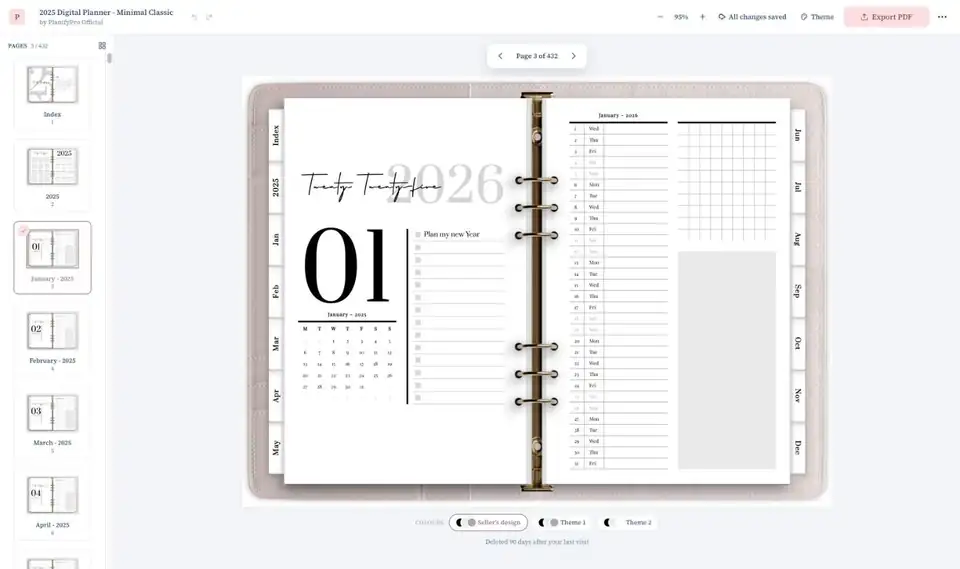
Depending on what you've allowed, they can:
Type their own text, like a name on the cover or headings, and pick a font. The font they choose becomes their default for anything else they type.
Switch colours using the colour themes at the bottom, or pick each colour themselves.
Write straight into the planner, for example in a to-do list, a grid or the perpetual calendar.
Changing widgets
When a buyer taps a widget, a panel opens on the right. Here they can change the widget type, for example from a to-do list to lined, grid or empty, add or remove rows, choose a different frame and change its colours. One tap and the page changes.
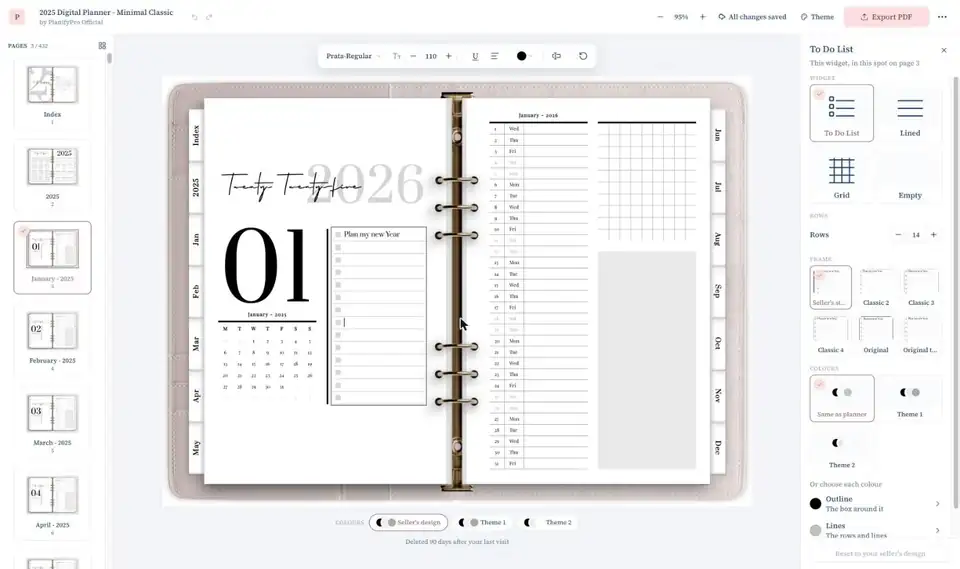
If they change their mind, Reset to your seller's design puts the widget back exactly as you made it.
It all works on a phone too, so buyers can start personalising right after checkout. If they come back later, Edit planner opens their last copy, or they can start a fresh one. Their changes save automatically.
Downloading the PDF
When they're happy, your buyer clicks Export PDF and chooses:
Pages: all pages, just this page, or a custom range.
Print as: Page by page for home printing or digital use, or Booklet for folding and stapling or cutting for rings.
Paper: planner size, A4, US Letter or A5. They see how many sheets it will use before they export.
Language: if you've switched on AI translation, they can download the planner in one of the languages you've published.
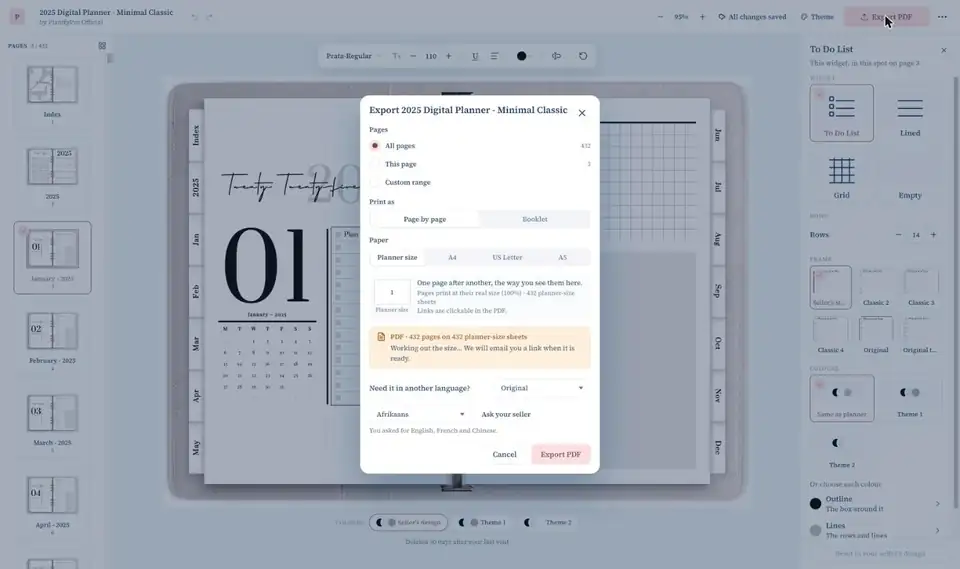
Links stay clickable in the PDF, so digital planners still work in GoodNotes and other note apps. If a file takes a while to build, we email the buyer a download link as soon as it's ready.
Plans and limits
Seller Studio is part of every Business plan. Here is what each one includes:
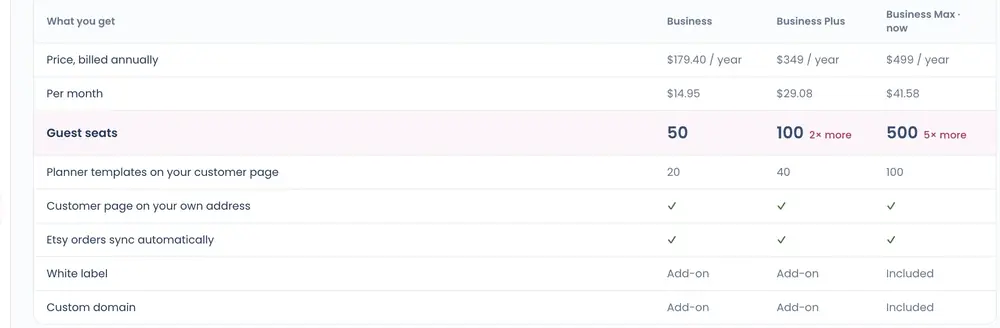
Guest seats: one seat is one buyer with access to their editor. Revoking a guest frees the seat straight away.
Planner templates: how many editable planners you can have on your customer page.
Add-ons
You'll find these under Add-ons in Seller Studio:
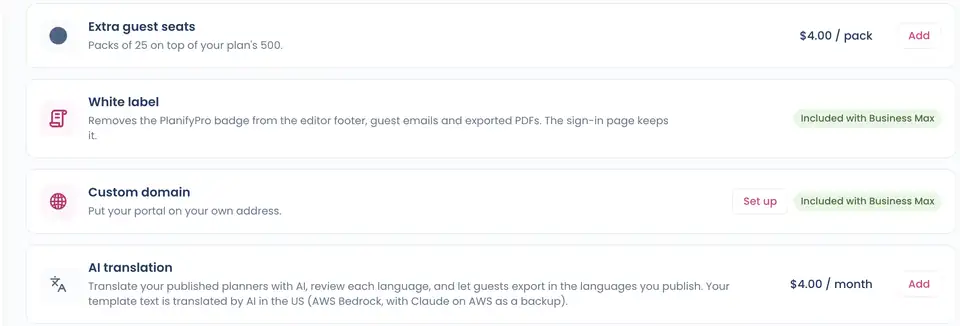
Extra guest seats: packs of 25 for $4.
White label and custom domain: included on Business Max.
AI translation: $4 a month. Translate your published planners with AI, review each language, and let buyers export in the languages you publish.
Add-ons are charged to your Planify Pro subscription. Prices are before VAT.
Black Friday: double your Seller Studio limits
Until Monday 30 November 2026, 23:59 UTC, every yearly Business plan comes with Black Friday extras:
Double the Seller Studio limits for a whole year: twice the guest seats, templates and fonts.
AI translation free for a year (4× the translation tokens on Business Max).
Free branding: a free custom domain on Business, and free white label plus custom domain on Business Plus.
More pages per planner: up to 1,500 on Business Max.
Free bundle credits to unlock past bundles from the Vault: 10, 20 or 30 depending on your plan.
Frequently asked questions
What is Seller Studio? It's your own PDF planner editor for your customers. People who buy your planners can make simple edits, like text, colours and widgets, and then download their PDF.
Do I need a separate subscription for Seller Studio? No. It's included in every Business plan.
Can buyers break my design? No. They can only change what you switch on in Guest permissions. Everything else stays exactly as you made it, and buyers can always reset a widget to your design.
Do I have to email buyers their link? No. Once your Etsy shop is connected and the listing is linked to a template, Seller Studio sends the invite automatically after each paid order.
How long can buyers access their planner? A buyer's copy is kept for 90 days after their last visit. Every time they come back, the clock starts again.
Does it work on a phone? Yes. Buyers can open and edit their planner on a phone, tablet or computer.
Ready to try it? Open Seller Studio and add your first editable template.